








ASSEMBLY INSTRUCTIONS · HSP4 STEPS · NO TOOLS REQUIRED

P-06How it works

How to set up a hardware store POS, step by step

You sign up online, create the business, add your location and registers, import your products, and your online store is generated from that catalogue. There is nothing to install. With a prepared item file it takes about 39 minutes.

Parts you need
  • A Tax registration details
  • B Item file (CSV / Excel)
  • C Customer list with balances
  • D A PC, tablet or phone
  • E Receipt printer + scanner (optional)
 

4 stepsAssembly instructions

The four steps, with honest timings

    • email
    • store name

    Create the business

    Sign up online with your store name, currency, tax rates and financial year. Pick the interface language. No install, no card.

    • address
    • staff list

    Add location + registers

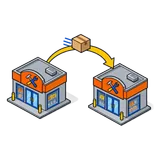
    Add the store (and the yard or warehouse as its own location), registers, receipt layout, and your staff with their roles and PINs.

    • CSV / Excel

    Import the item file

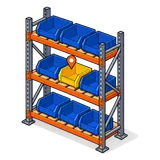
    Upload your products from CSV or Excel: SKU, barcode, cost, price, unit and sub-unit, rack/row/position and opening stock. Then customers and their credit limits.

    • product photos

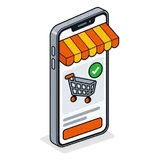
    Your online store is live

    The store front is generated from the catalogue you just imported: products, prices, photos and stock. Switch it on and share the link, then start selling at the counter.

DETAILInside each step

What you actually do in each step

1

Create the business

  1. 1.1Business name, start date and financial year
  2. 1.2Currency (USD, AED or PKR) and how numbers and dates display
  3. 1.3Tax rates and tax groups: state sales tax, 5% VAT, or GST/sales tax
  4. 1.4Interface language for the business and each user
  5. 1.5Your first admin user and password
2

Add your location and registers

  1. 2.1The store as a business location, the yard or warehouse as another
  2. 2.2Invoice layout per location: logo, tax numbers, terms, language
  3. 2.3Receipt printer per location and cash register settings
  4. 2.4Staff users with roles: cashier, counter manager, buyer, owner
  5. 2.5Turn on units/sub-units and rack, row and position
3

Import products, customers and stock

  1. 3.1Create units (Box 100, Coil 50 m) and categories first
  2. 3.2Import the item file from CSV or Excel in batches
  3. 3.3Import opening stock per location
  4. 3.4Import contractor accounts with credit limits, pay terms and balances
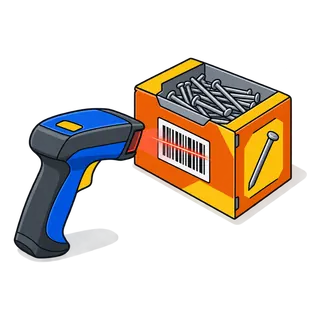
  5. 3.5Print shelf labels for the first aisle and test the scanner
4

Switch on the online store and sell

  1. 4.1Pick which categories show online
  2. 4.2Choose pickup, delivery or both
  3. 4.3Connect your own domain if you have one
  4. 4.4Open the register and ring the first sale
  5. 4.5Close the register at the end of the day and check the report

WK-1First week

A sensible first week

Day 1

Set up, import 1 department, label it, ring test sales.

Day 2–3

Import the rest of the item file and the contractor accounts.

Day 4

Train counter staff on units, accounts and quotes (an hour).

Day 5

Run live alongside the old system; compare the end-of-day.

Day 6–7

Switch over on a quiet day; switch on the online store.

Q&ASheet set · FAQ

Set-up questions

How long does it take to get started?
About 39 minutes of set-up if your item file is already in a spreadsheet: create the business, add the location, import, switch on the store. Cleaning a messy item file is the part that takes longer, and we help with it.
Do I need a technician to install anything?
No. It is hosted software: you sign up and use it in a browser. Printers, scanners and cash drawers plug into the PC or tablet you sell from.
Can I keep my old system running while I try it?
Yes. Run both side by side during the 21-day trial, then switch on a quiet day, usually a Sunday or a public holiday.
What do I need before I start?
Your tax registration details, an export of products and customers from your current system (or a spreadsheet), your logo, and the device you will sell on.

Step 1 takes three minutes

Create the business now and import a department this afternoon. The help centre walks you through every screen.

21-day free trial · no card to start · no contract